Get started
The setup assistant takes a server from zero to the first good backup in about 15 minutes. It opens by itself when Salvo has no destination and no job. Nothing is saved before you confirm each step, and you can leave and come back: the step where you stopped stays saved on the server.
● available in 0.4.107 Requires Salvo installed.
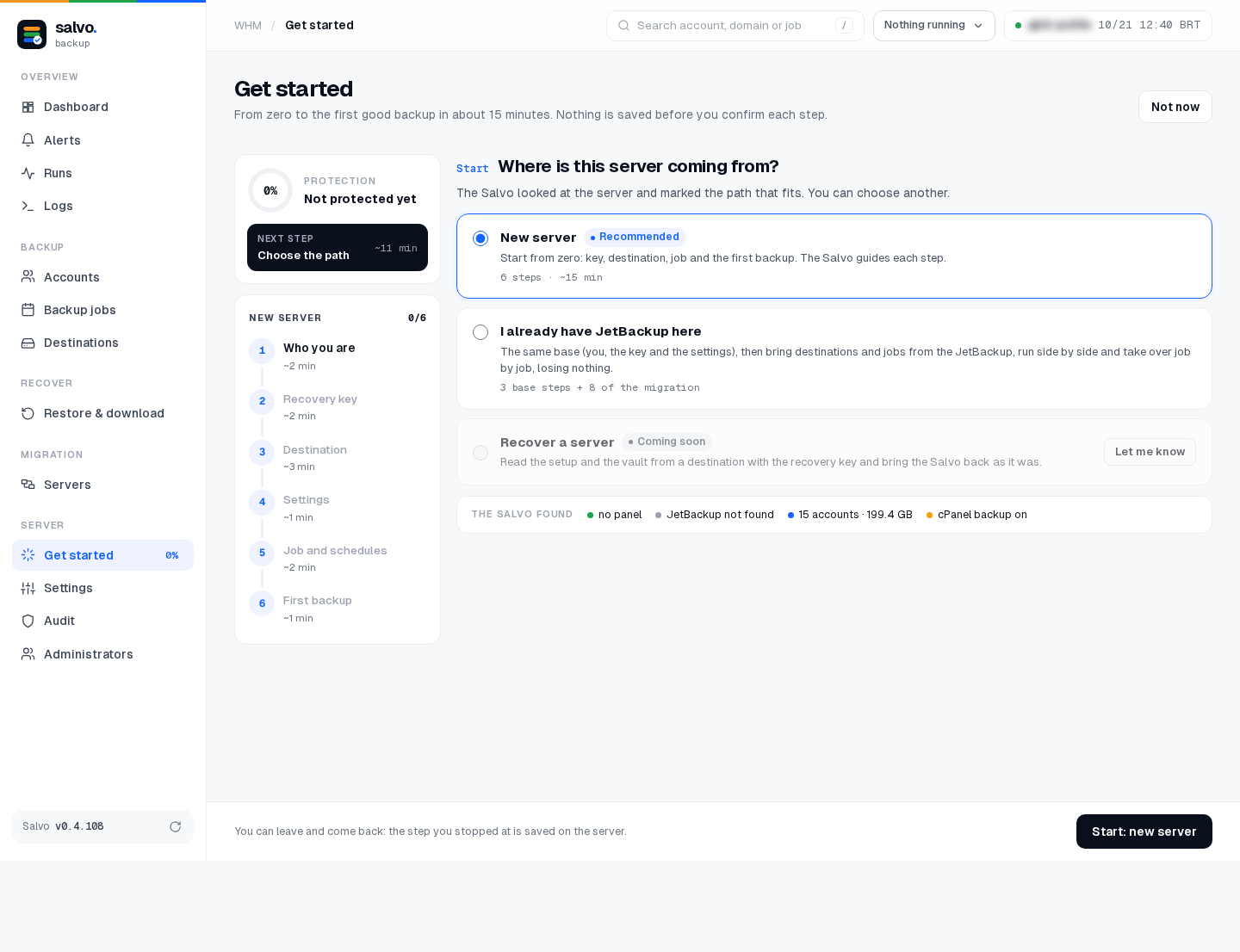
Choose the path
WHM › Plugins › Salvo Backup › Get started. Salvo looks at the server (panel, JetBackup, accounts, the panel's own backup) and marks the path that fits:
| Path | Steps |
|---|---|
| New server | the 6 steps below |
| I already have JetBackup here | steps 1 and 2 below, then the JetBackup settings, then Import from JetBackup |
| Recover a server planned | on the screen, coming soon; today by the command line: Recover a server |
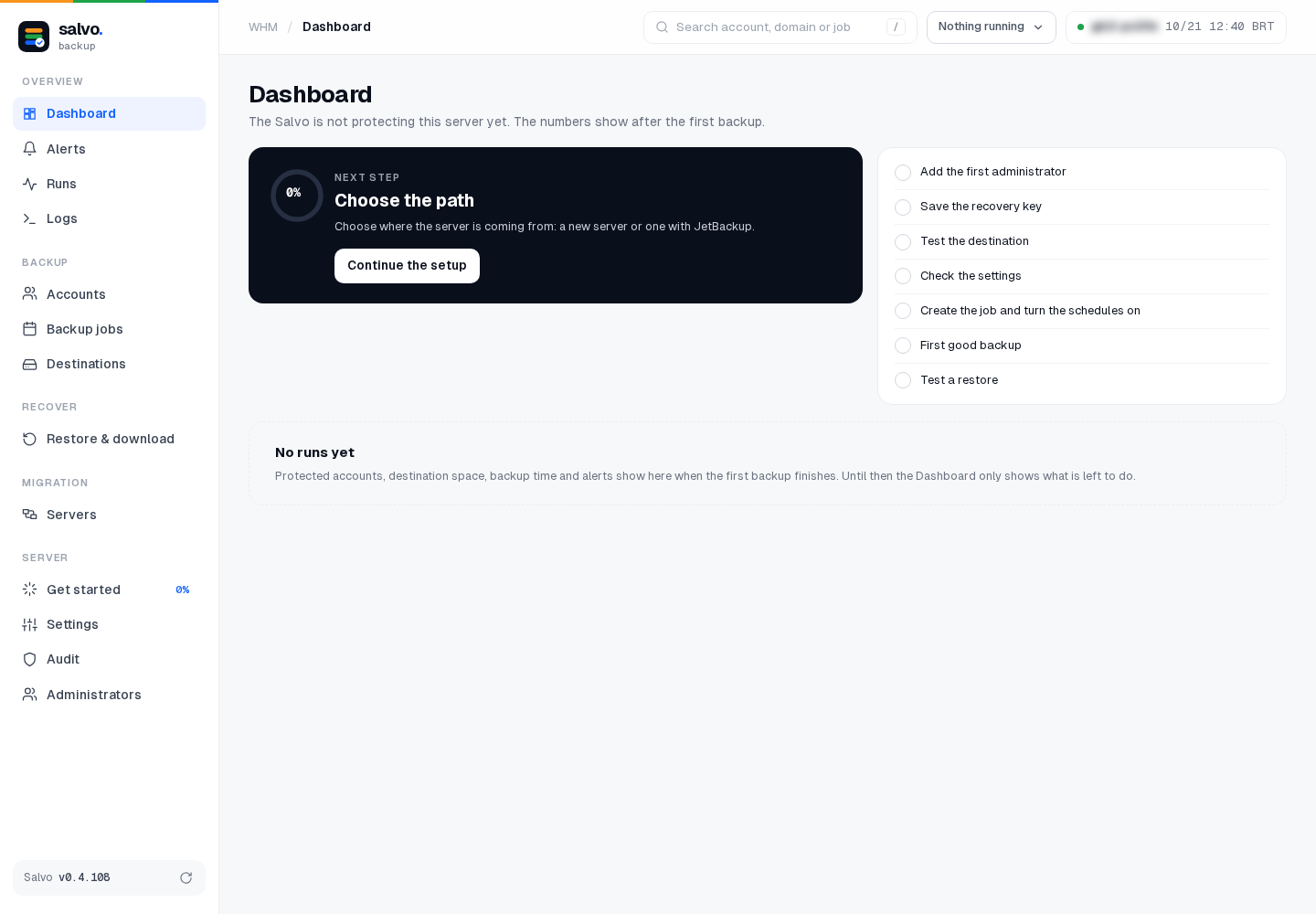
Until the assistant is done, the Dashboard shows what is left:
Not now stops the assistant from opening by itself; it stays in the menu (Server › Get started).
Step 1 · Who you are
Your name, e-mail and the two-factor app (Google Authenticator, Authy, 1Password…). You are the owner, the first administrator; everything done after this goes to the Audit with your name. Scan the code, type the 6 digits and keep the recovery codes the app shows. Other administrators are optional: their invitations go out at the end.

Step 2 · Recovery key
Salvo shows a key of 8 groups. Save it outside the server (Copy, Download .txt, or send it to your e-mail). To prove you saved it, type the 3rd group and the app code.
The backups are encrypted in the storage. If the server is lost, only this key opens the recovery copy, not even who made Salvo can. Whoever has the key and access to the storage can open the backups: keep it like a password.
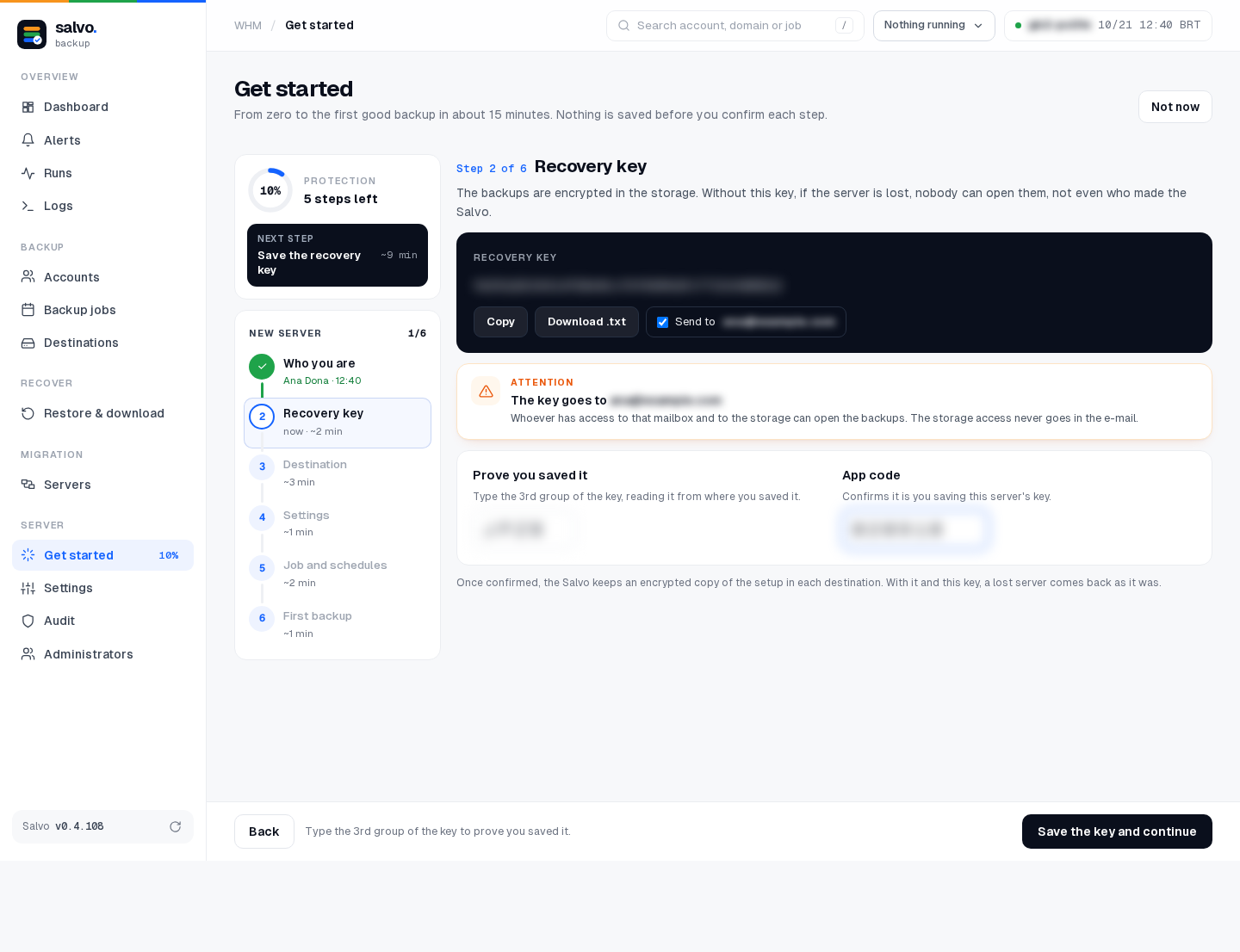
From this step on, Salvo keeps an encrypted copy of its database and vault in every destination (Recover a server).
Step 3 · Destination
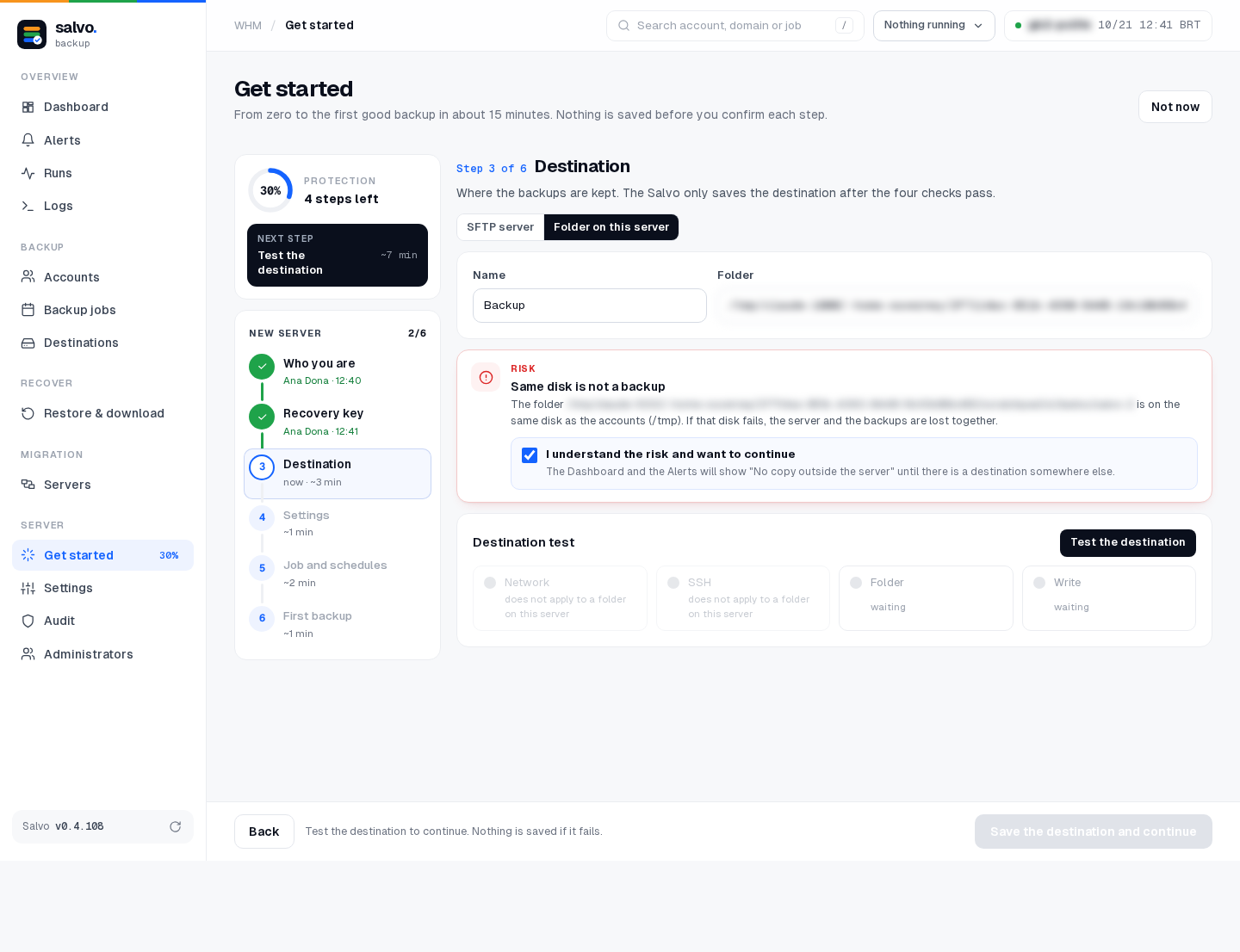
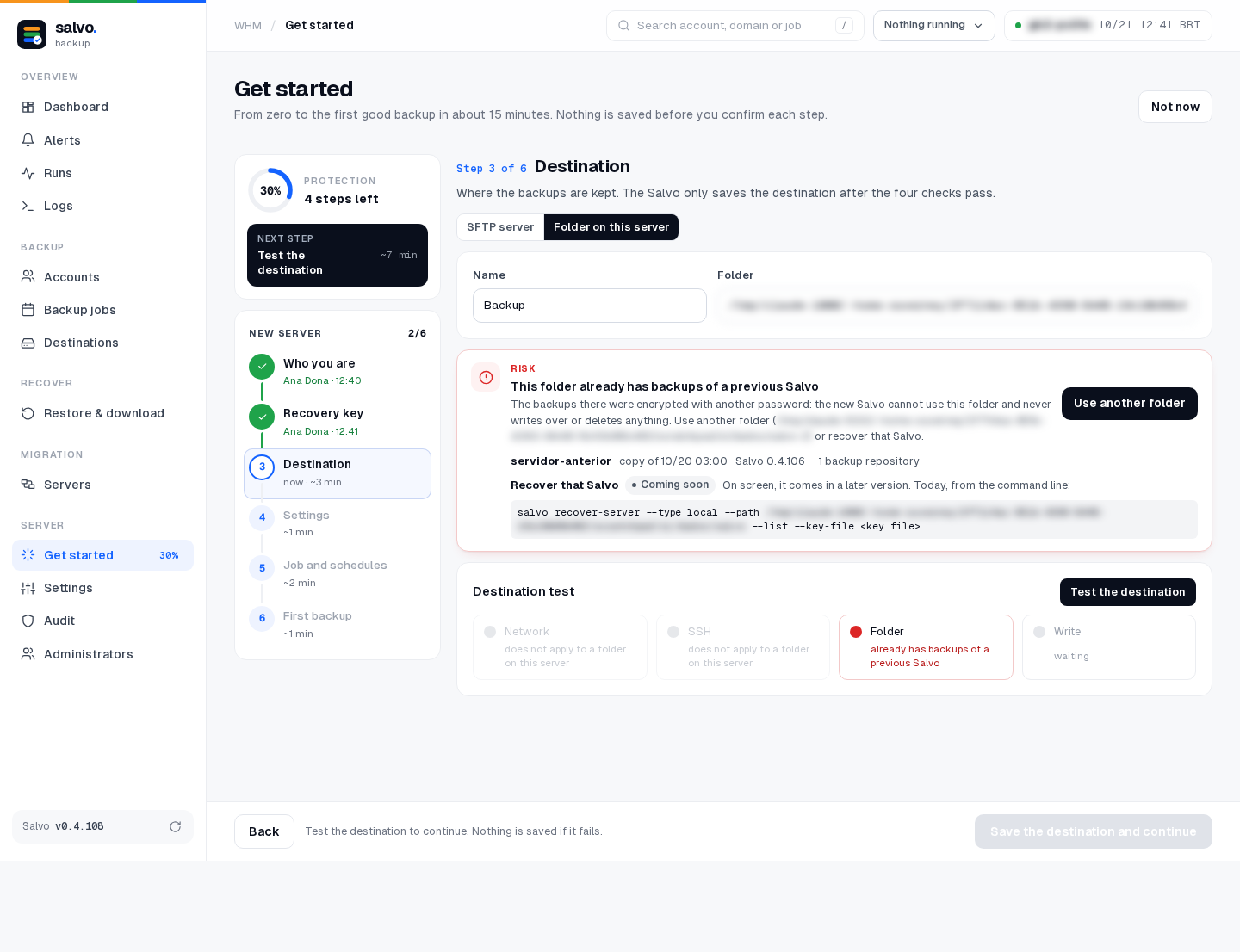
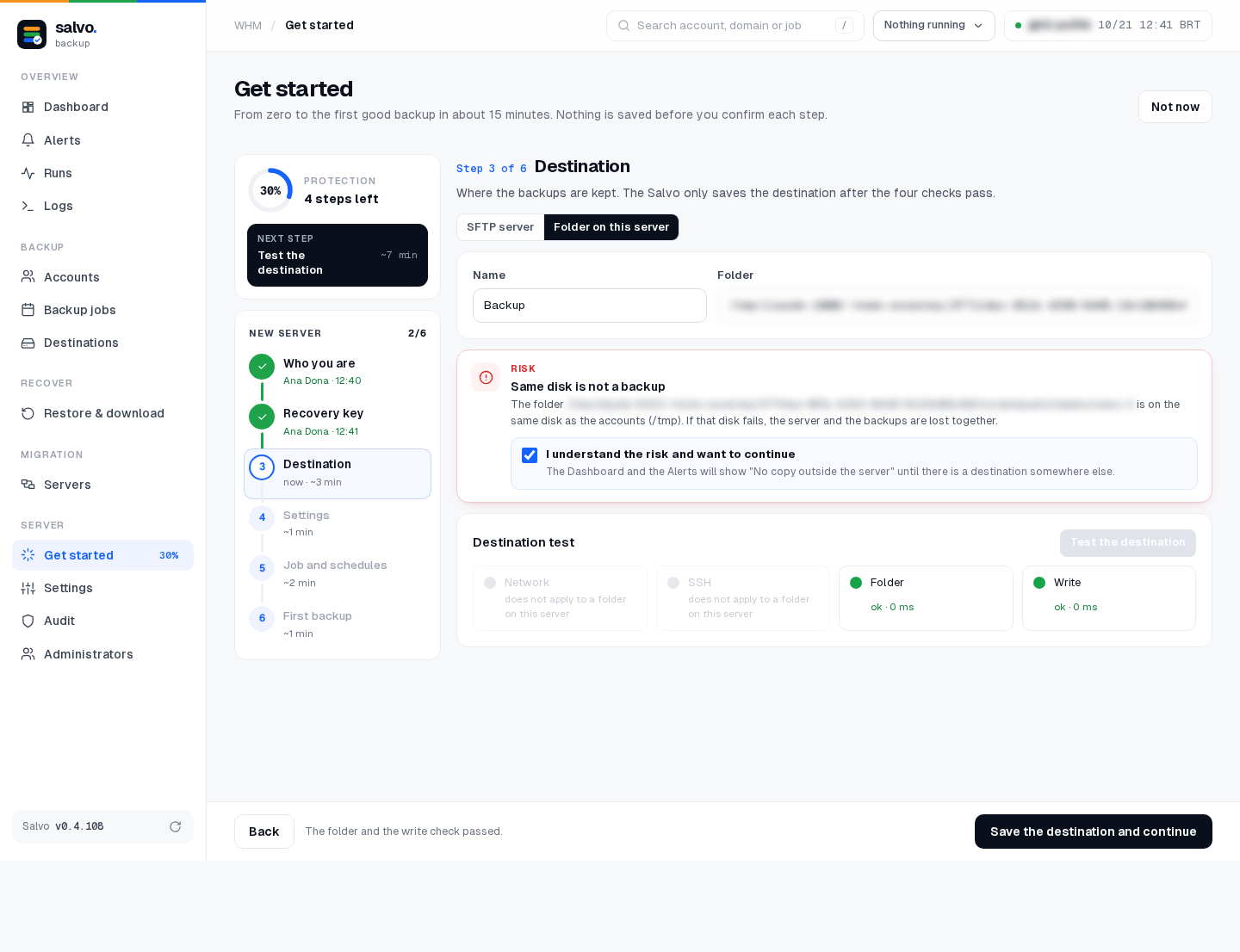
Where the backups are kept: SFTP server or Folder on this server. Salvo saves the destination only after the four checks pass: network, SSH, folder and write. For a folder on this server, network and SSH show does not apply to a folder on this server, and only the folder and the write are tested.
- A folder on this server shows the risk Same disk is not backup: if that disk fails, the server and its backups are lost together. To go on, check I understand the risk and want to continue; the Dashboard and the Alerts will show No copy outside the server until there is a destination elsewhere.
- A folder with backups of a previous Salvo is refused: they were encrypted with another password, so the new Salvo never uses that folder nor writes over it. Click Use another folder, or recover that Salvo.
Step 4 · Settings
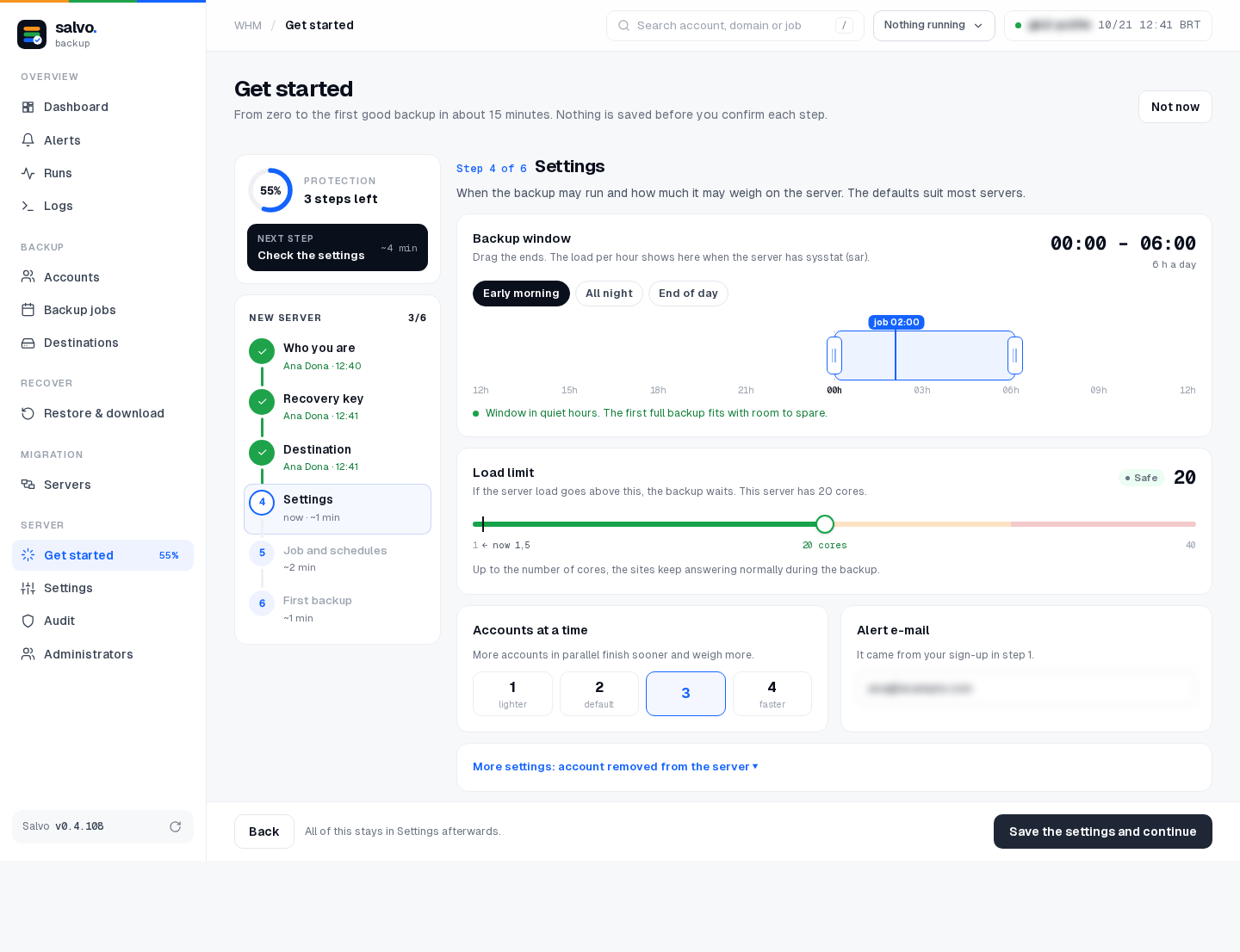
| Setting | Default |
|---|---|
| Backup window: when backups may run | 00:00 – 06:00 |
| Load limit: above it, the backup waits | the server's number of cores |
| Accounts at once | 2 |
| Alert e-mail | the one from step 1 |
| More: accounts removed from the server | off |
Everything here can be changed later in Settings.
Step 5 · Job and schedules
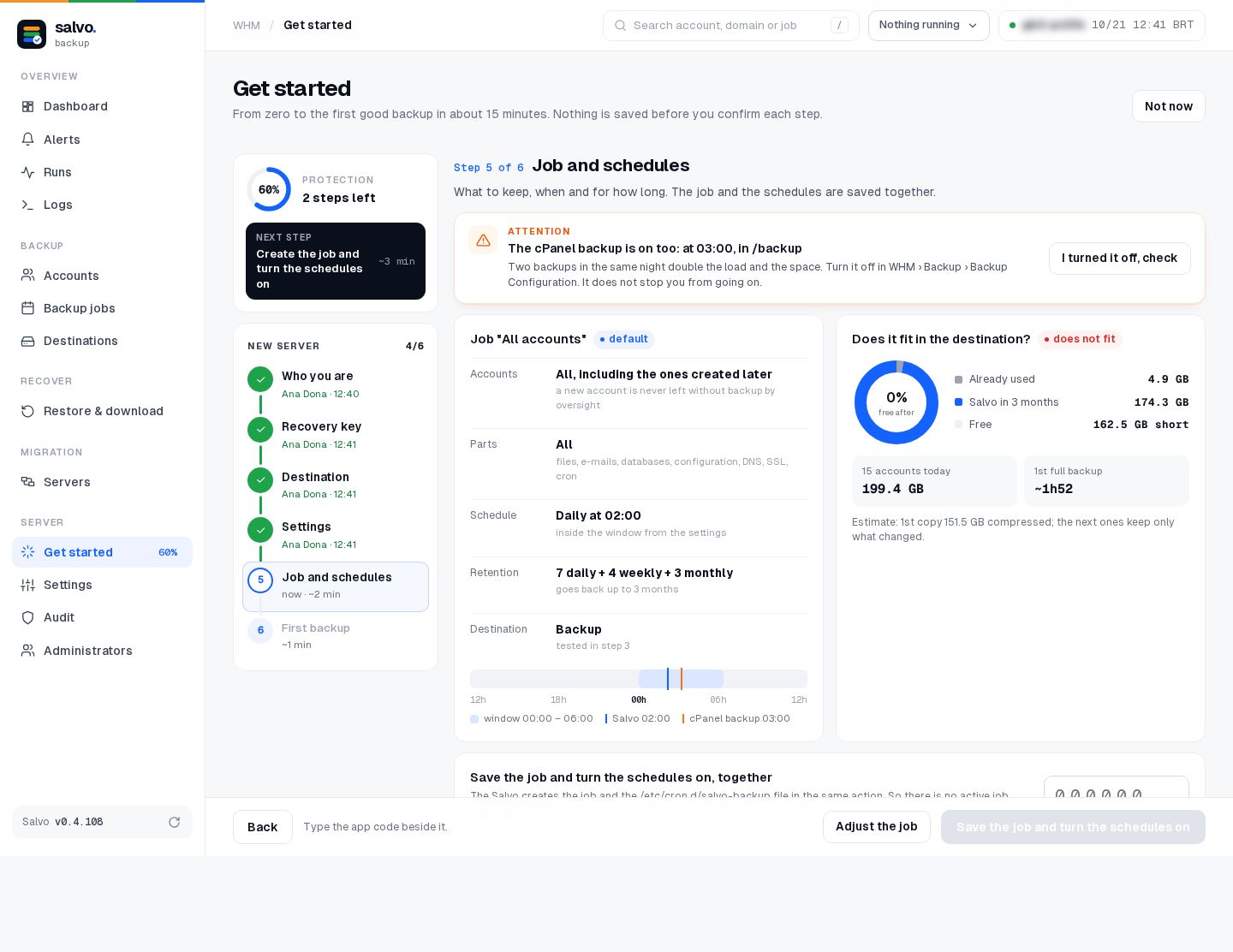
Salvo proposes the job Todas as contas (all accounts):
| Accounts | all of them, including the ones created later |
| Parts | everything: files, e-mail, databases, configuration, DNS, SSL, cron |
| Schedule | daily at 02:00 (or the start of the window) |
| Retention | 7 daily + 4 weekly + 3 monthly (back up to 3 months) |
Fits in the destination? shows the estimate of the first copy. If the cPanel backup is also on, Salvo warns: two backups in the same night double the load and the space (it does not stop you).
The job and the schedules (/etc/cron.d/salvo-backup) are saved together, with the app code: there is never an
active job that never runs.
Step 6 · First backup
- In the next window (recommended): the full first backup runs at night, with low load.
- A quick test now: one small account, respecting the load limit.
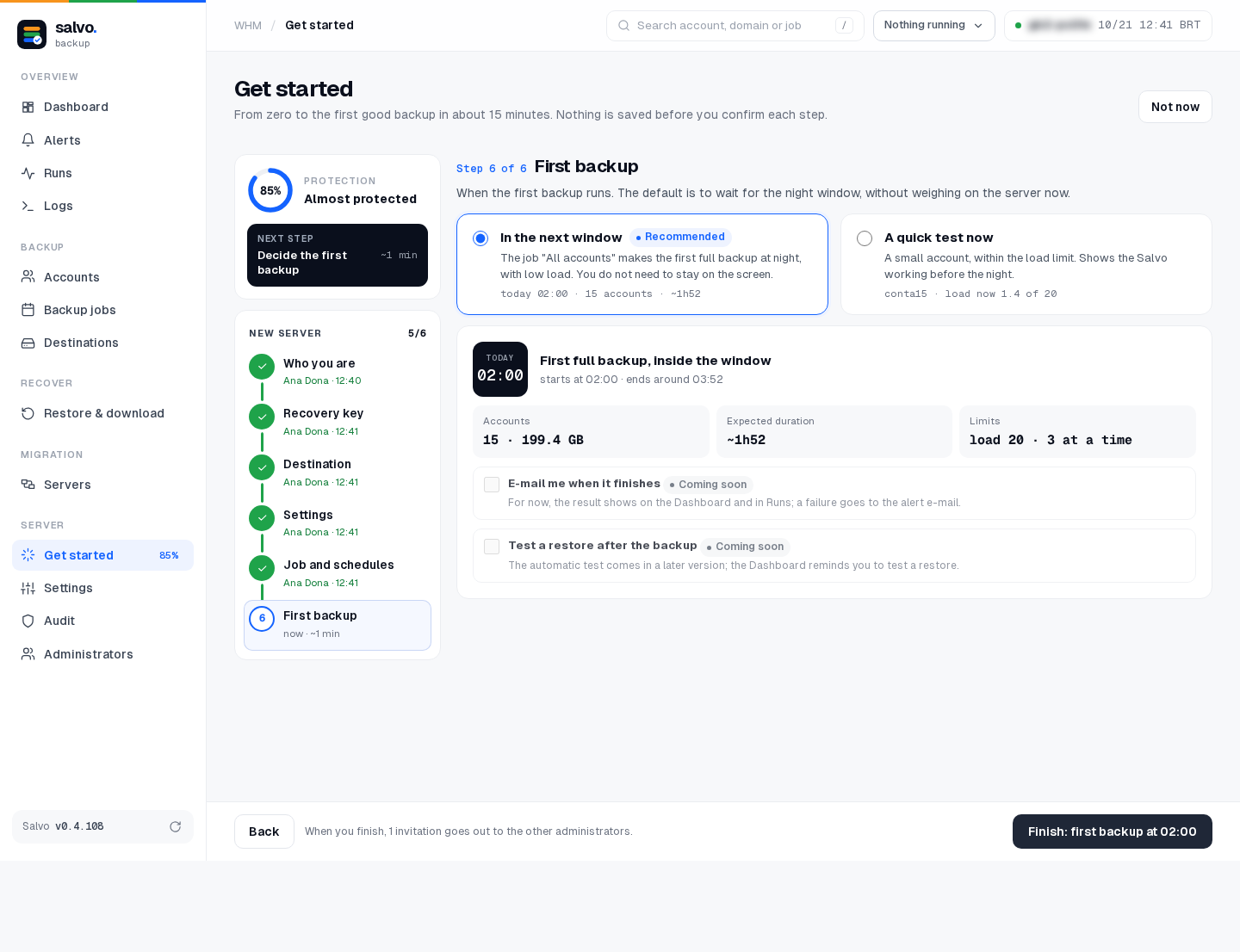
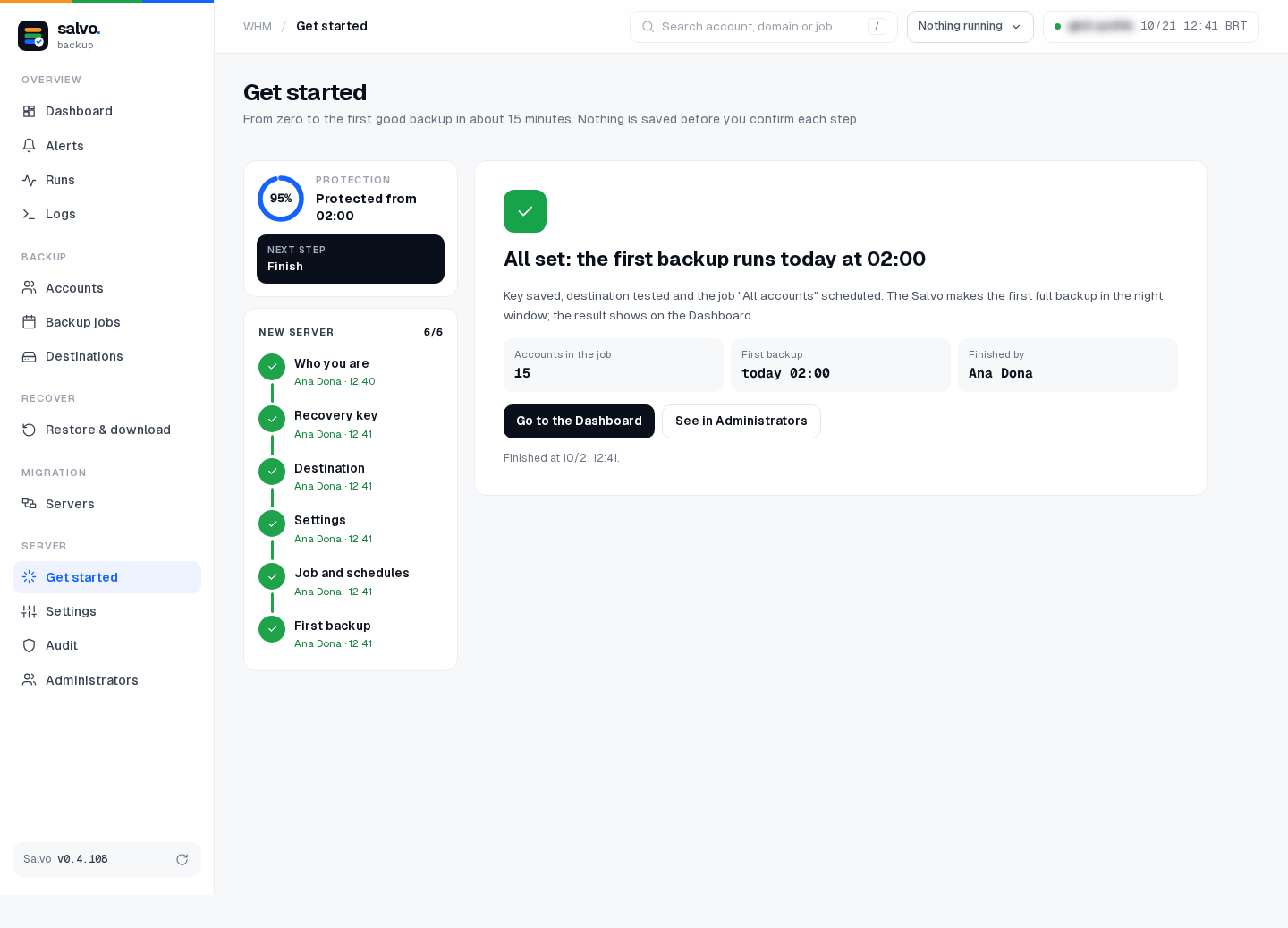
Done
The assistant shows when the first backup runs and who finished it. Invitations to the other administrators go out now. From here on, the Dashboard shows the protection.
On the command line
# where the assistant is: path, steps, who did each one, what is missing
/var/lib/salvo/salvo setup
# the path: a new server, or a server with JetBackup
/var/lib/salvo/salvo setup-path new
# step 1: creates the owner and prints the authenticator secret (keep the terminal private)
/var/lib/salvo/salvo setup-admin --name NAME --email EMAIL
# step 1: pairs the app (prints the 10 recovery codes, only now)
/var/lib/salvo/salvo setup-admin --code 123456
# step 2: prints the recovery key; then confirm with its 3rd group
/var/lib/salvo/salvo setup-key
/var/lib/salvo/salvo setup-key --confirm GROUP3
# step 3: create and test the destination, then use it
/var/lib/salvo/salvo destination-add --name Backup --type local --path /FOLDER
/var/lib/salvo/salvo destination-test --destination N
/var/lib/salvo/salvo setup-destination --id N
# step 4
/var/lib/salvo/salvo setup-settings --window 00:00-06:00
# step 5: the job Todas as contas and the cron, together
/var/lib/salvo/salvo setup-job
# step 6: in the next window, or a quick test now
/var/lib/salvo/salvo setup-first-backup window
# ends the assistant
/var/lib/salvo/salvo setup-finish
For an SFTP destination, see destination-add in the command line reference
(--host, --port, --user, --key-from, --known-hosts-from). Server with JetBackup: setup-path jetbackup,
steps 1 and 2, setup-settings … --jetbackup, then Import from JetBackup.