Import from JetBackup (steps 1 to 4)
Phase A of Bring from JetBackup: Salvo reads JetBackup's destinations and jobs and imports what you approve. It takes minutes. Until step 4, nothing is written; JetBackup keeps running as before.
● available Requires Salvo installed.
On the screen
Open WHM › Plugins › Salvo Backup › Bring from JetBackup (menu Server).
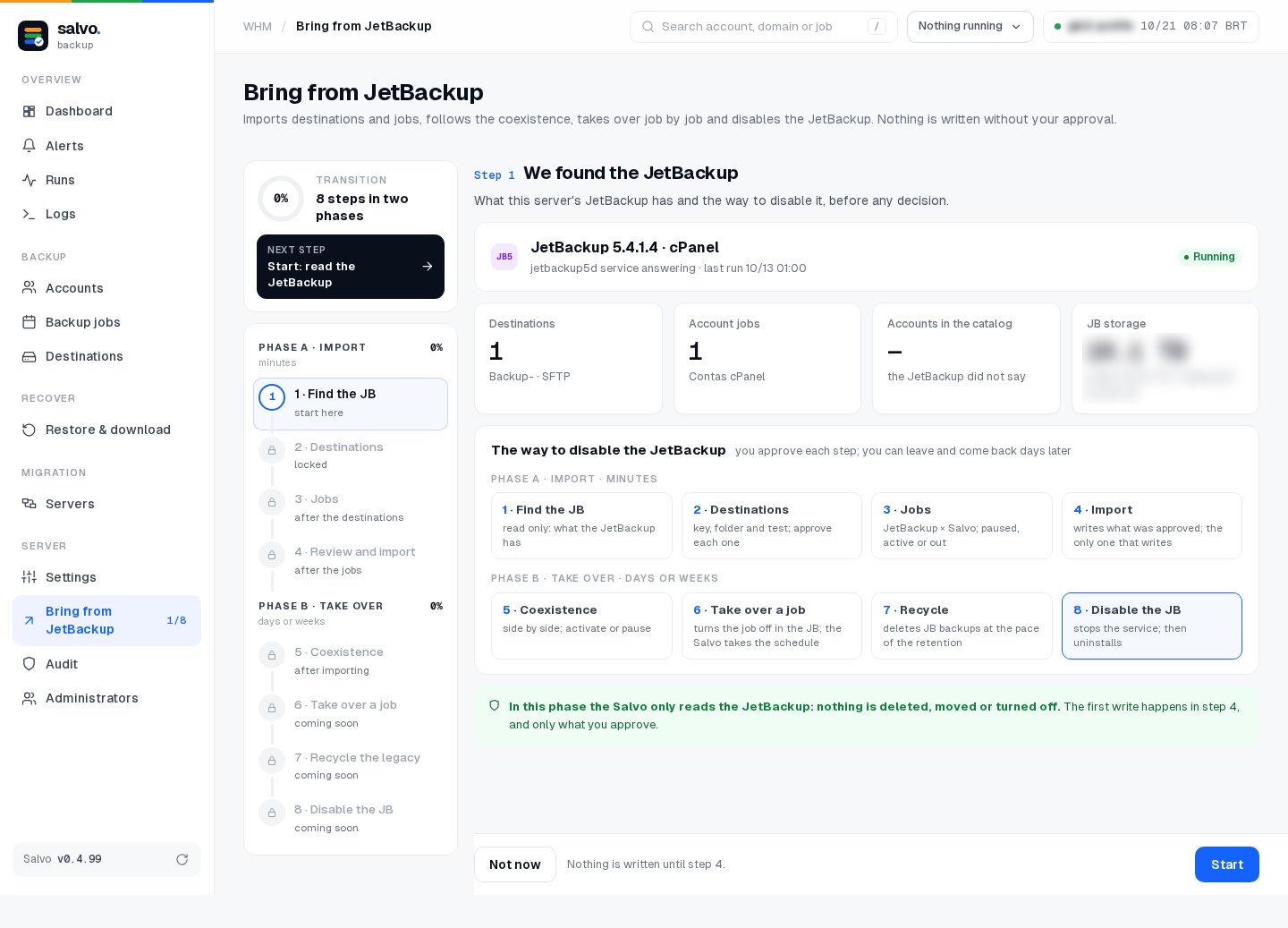
Step 1 · Find the JB
Salvo shows what this server's JetBackup has: version, destinations, account jobs and the way to disable it later. Click Start.
Step 2 · Destinations
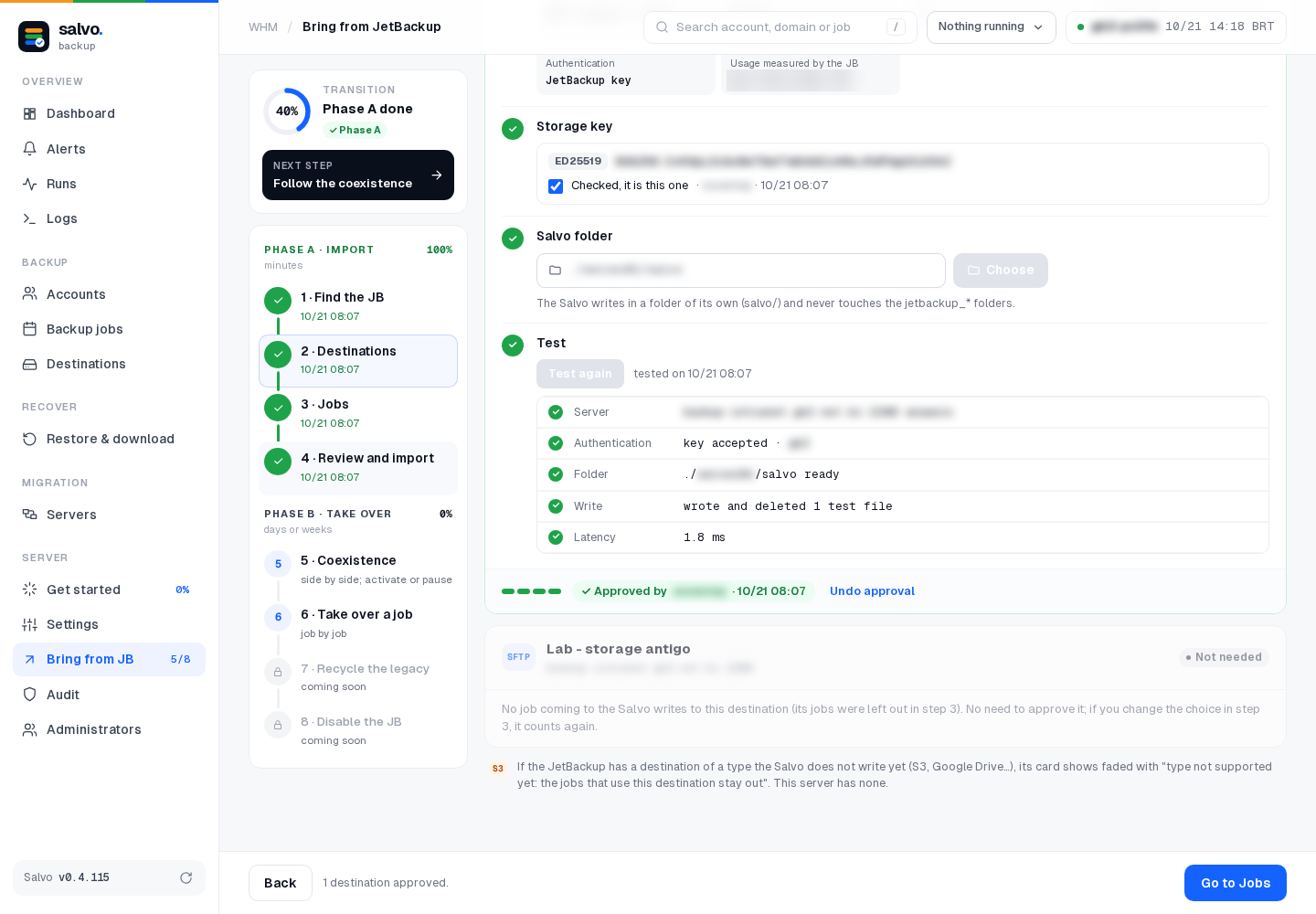
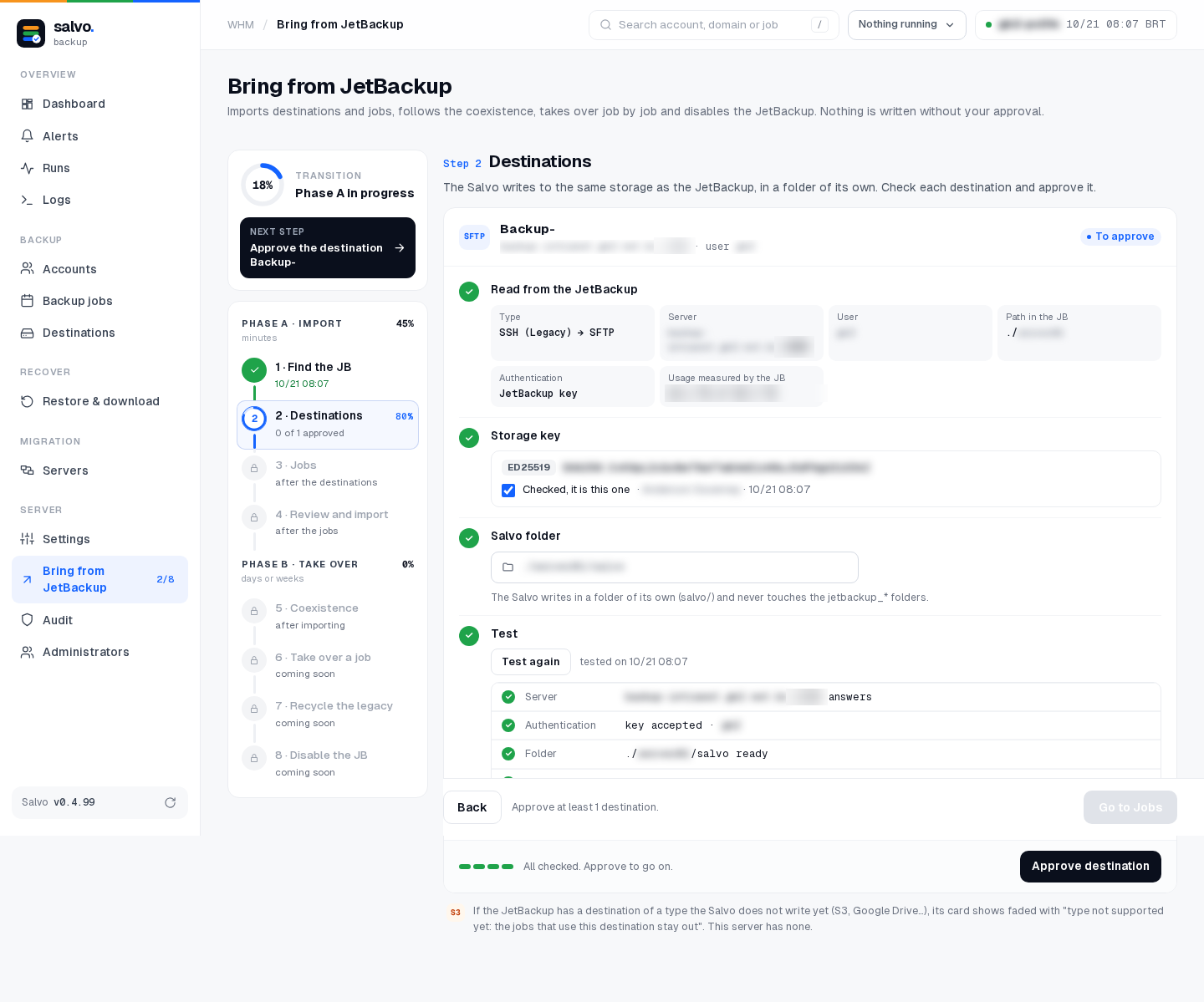
For each JetBackup destination:
- compare the storage key fingerprint with the right one (why and how to get it), and check Checked, it is this one;
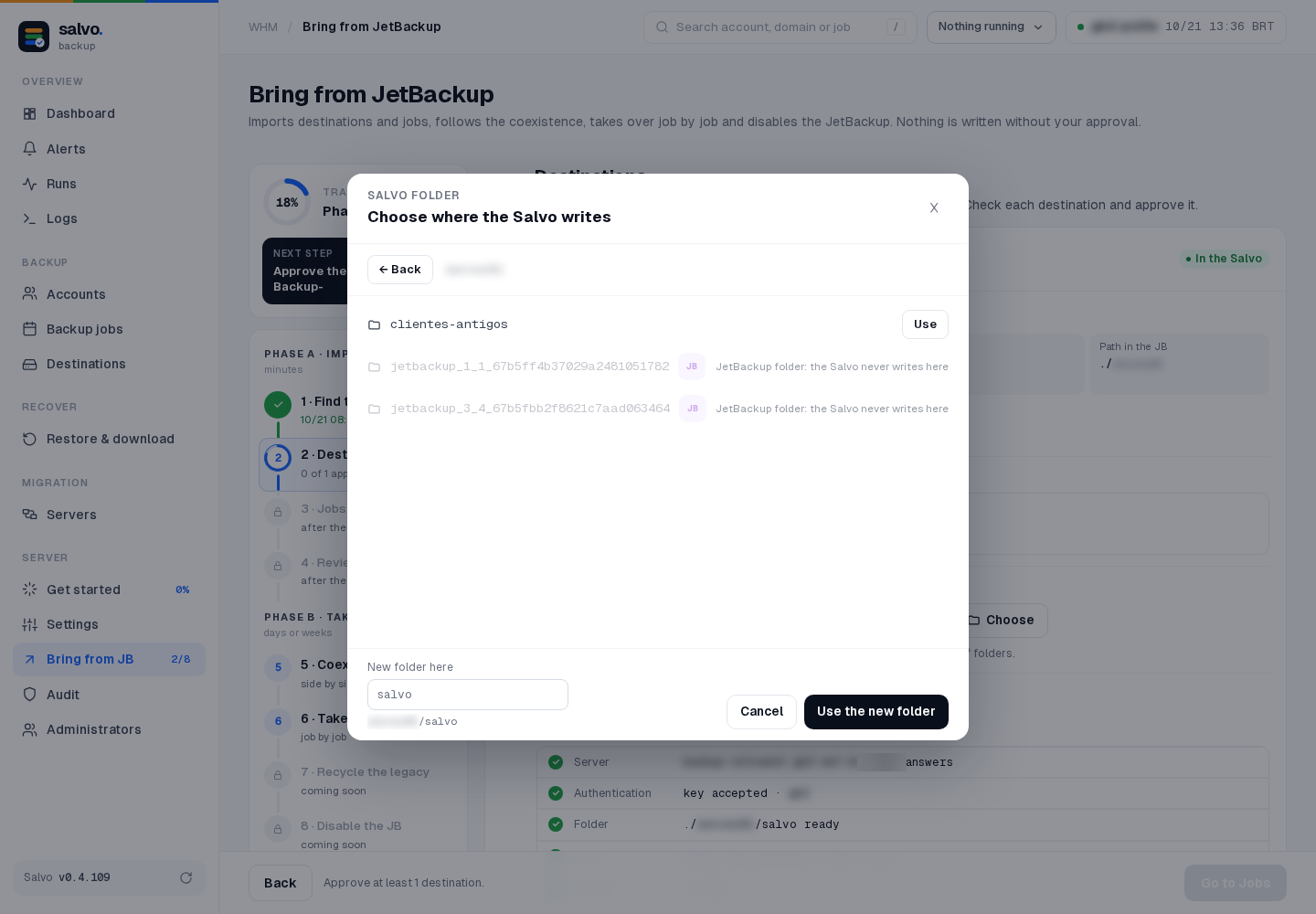
- check the Salvo folder: it must be
…/salvo/, next to JetBackup's folders and never inside ajetbackup_*folder. To pick another one, Choose (available once the key is checked) browses the storage, reading only: the path is clickable, ← Back goes up, Use picks a folder, and New folder here (filled withsalvo) + Use the new folder creates one. Thejetbackup_*folders show locked, with the JB seal: Salvo never writes there; - click Test (server, authentication, folder, write and read);
- click Approve destination.
A destination used only by jobs you mark as Do not import in step 3 shows dimmed, with the Not needed seal, and does not count to finish this step. If you change the choice in step 3, it counts again.
The storage fingerprint
Why. JetBackup does not keep the storage's SSH key (it has no known_hosts). So Salvo fetches the key on the
first connection and shows its fingerprint (SHA256:…). Checking it proves this is the real storage and not a server
posing as it (a changed DNS record, a hijacked IP). Once you confirm it, Salvo records the key and refuses to connect
if it ever changes. It is ssh's "Are you sure you want to continue connecting?", with the check actually done.
How to get the right one, to compare:
for k in /etc/ssh/ssh_host_*_key.pub; do ssh-keygen -lf "$k"; done
ssh-keyscan -p 2222 storage.example.com 2>/dev/null | ssh-keygen -lf -
One match is enough: if one of the lines Salvo shows (usually the ED25519 one) is equal to one of these, it is right.
Find out first why the key is different: the storage was replaced or reinstalled, or someone is in the middle.
Step 3 · Jobs
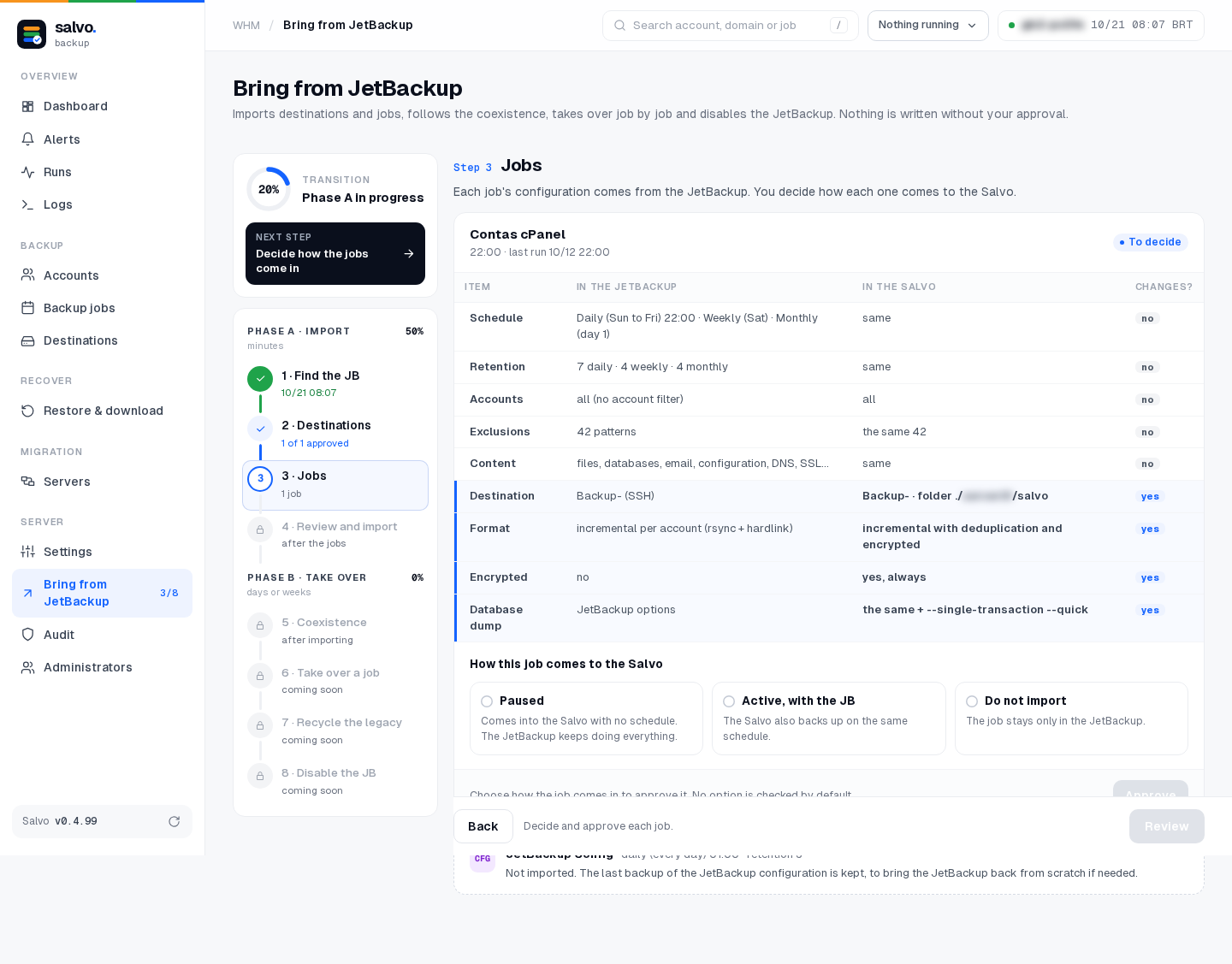
Each JetBackup job shows what comes as is (schedule, retention, accounts, exclusions, content) and what changes in Salvo (folder, format, encryption, database dump). Choose how it comes in:
| Mode | What happens |
|---|---|
| Paused | comes into Salvo with no schedule; JetBackup keeps doing everything |
| Active, with the JB | Salvo also backs up on the same schedule |
| Do not import | the job stays only in JetBackup |
Choose Paused. You run the first backup by hand and turn the schedule on only when you decide.
Step 4 · Review and import
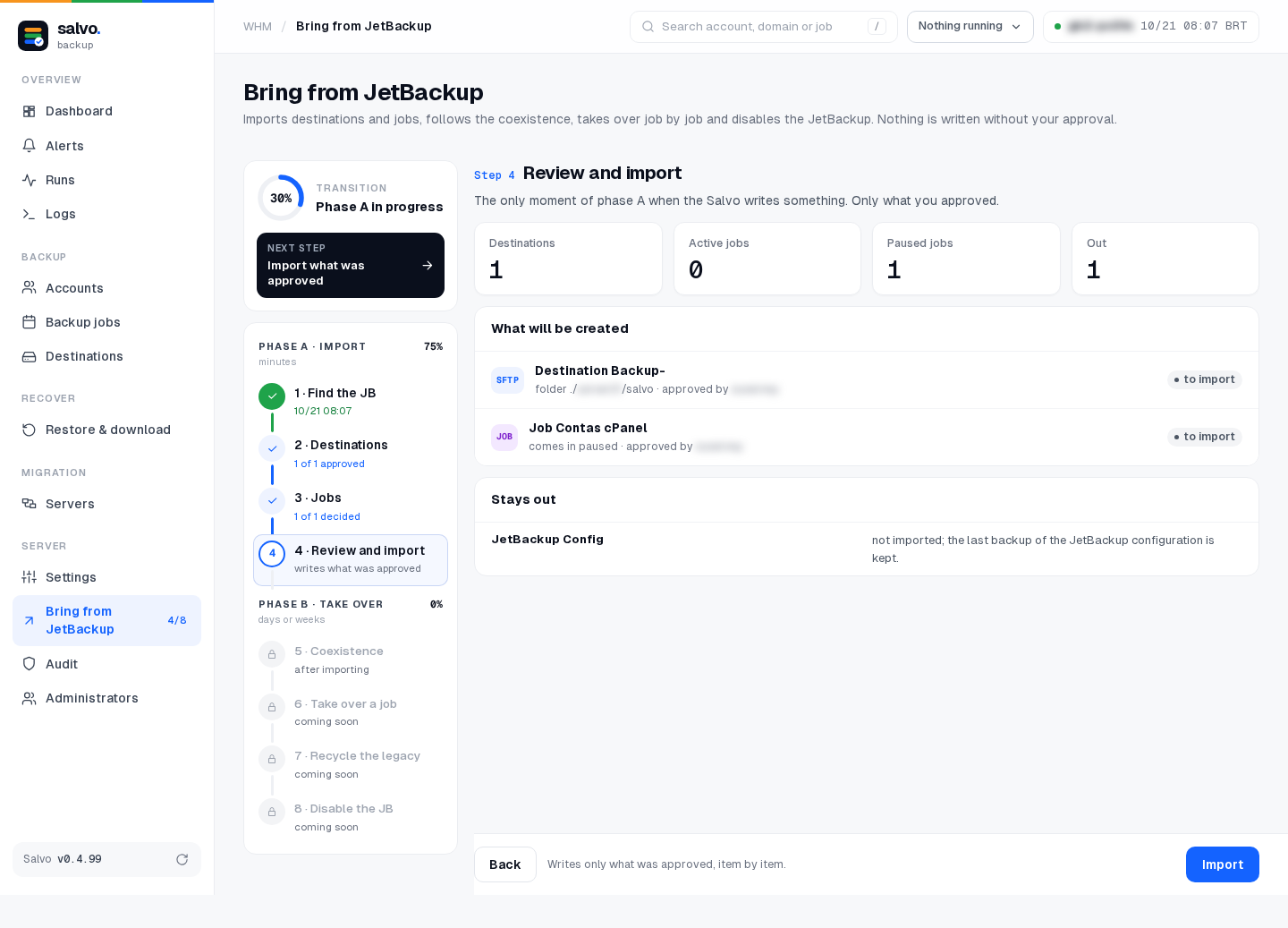
The summary shows what will be created and what stays out. Click Import. This is the only moment of phase A when Salvo writes something, and only what you approved.
On the command line
# what JetBackup has and the 8 steps (JB_ID of each destination and job)
/var/lib/salvo/salvo jb-transition
# step 1 (reads only)
/var/lib/salvo/salvo jb-transition-start
# step 2, in this order: fetch the key (prints the fingerprints to check), confirm, test, approve
/var/lib/salvo/salvo jb-transition-destination --destination JB_ID --fetch-key
/var/lib/salvo/salvo jb-transition-destination --destination JB_ID --confirm-key
# optional: see the folders of the storage ("." = JetBackup's folder, or a path) and set the Salvo folder
/var/lib/salvo/salvo jb-transition-destination --destination JB_ID --browse .
/var/lib/salvo/salvo jb-transition-destination --destination JB_ID --folder FOLDER
/var/lib/salvo/salvo jb-transition-destination --destination JB_ID --test
/var/lib/salvo/salvo jb-transition-destination --destination JB_ID --approve
# step 3
/var/lib/salvo/salvo jb-transition-job --job JB_ID --mode paused
# step 4: writes what was approved
/var/lib/salvo/salvo jb-transition-import
Check the result
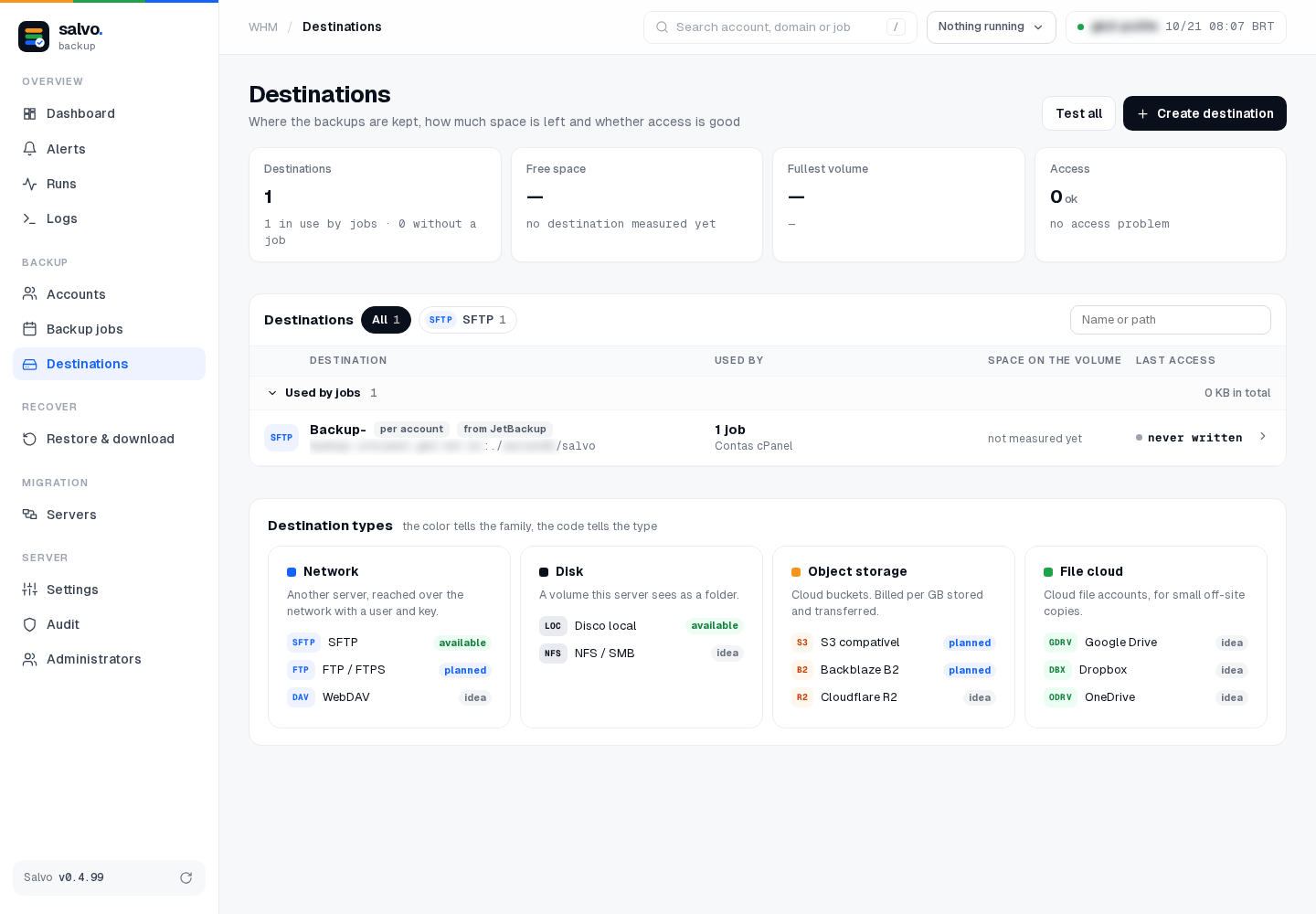
- Destinations: the imported destination shows from JetBackup. Click Test all.
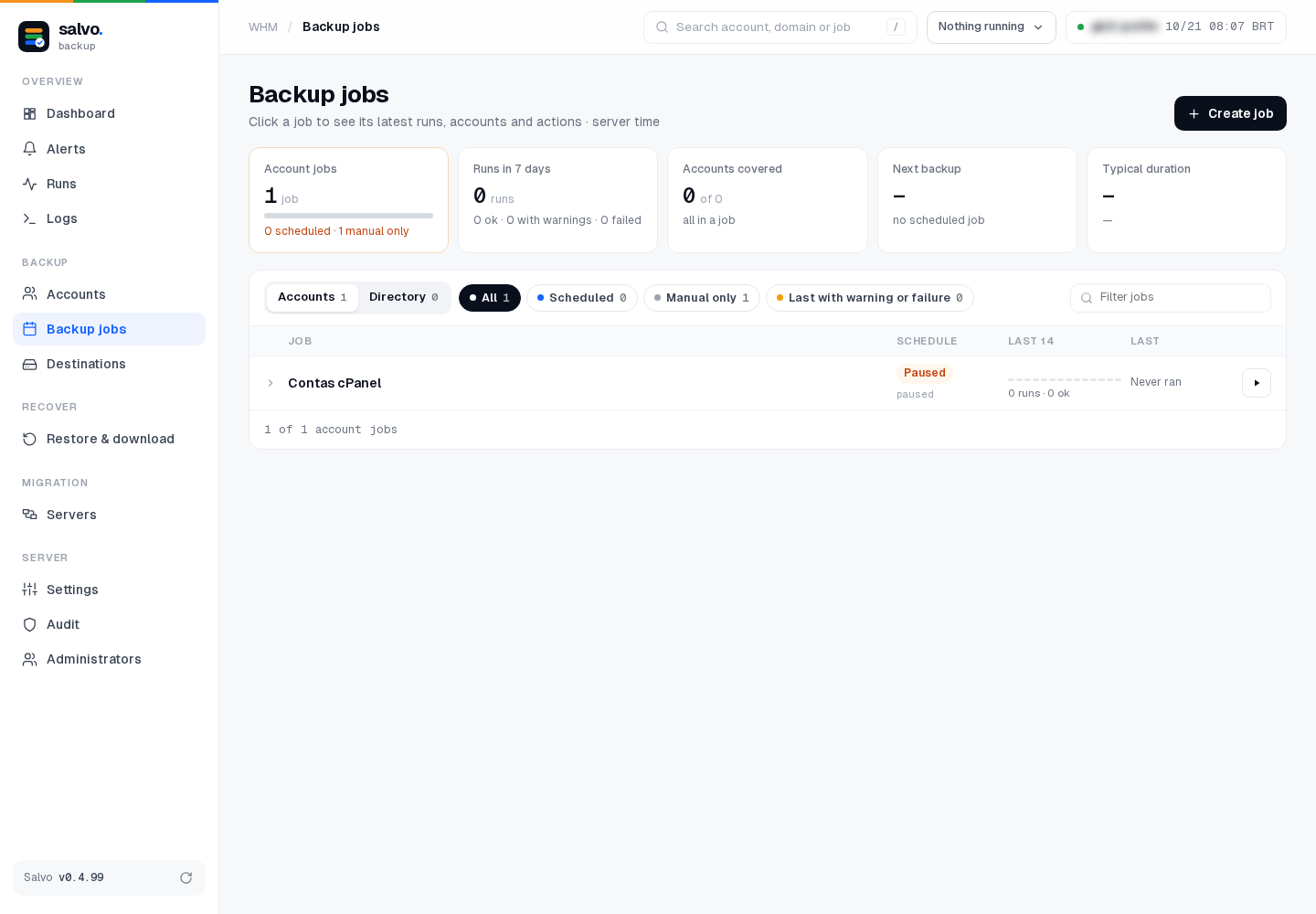
- Backup jobs: the imported job shows Paused. A job that came with all accounts covers every account of the panel, including the ones created later (version 0.4.105 or later).
Next: first backup.